Documentation
MarqueeAddons - Smooth marquee carousel loop for elementor
Thank you so much for purchasing our item
- Version: 1.0.0
- Author: Debuggers Studio
- Created: October, 2024
- Update: October, 2024
Introduction
This documentation will guide you through the process of uploading and installing the MarqueeAddons - Smooth marquee carousel loop for elementor plugin to your WordPress website. So you can quickly set up your plugin. Your comments and ratings would be highly appreciated to improve our product. If you have any questions not covered in this guide, please do not hesitate to reach out to us.
Prerequisites
Before proceeding with the installation, please ensure you have the following:
- WordPress Version: 5.8 or higher
- PHP Version: 7.4 or higher
- Elementor
Installation Request
Step: 01
Install and Activate Elementor
Step: 02
Install and Activate MarqueeAddons
- 1. From your WordPress Dashboard, navigate to the Plugins section.
- 2. Click on the Add New Plugin
- 3. In the top right click on Upload Plugin
- 4. Now choose plugin file marquee-addons-for-elementor.zip from your computer or laptop
- 5. Click on Install Now button

After the installation is complete, click the Activate button to enable the plugin.

Import Demos
NOTE: Make sure before importing demos you've installed MarqueeAddons and Elementor
Image Marquee
Drag and drop image marquee
- On the left side of the screen, you'll see the Elementor widget panel.
- Scroll through the panel Marquee Addons and select Image Marquee.
- Click and hold on the widget you want to use, then drag it from the panel.
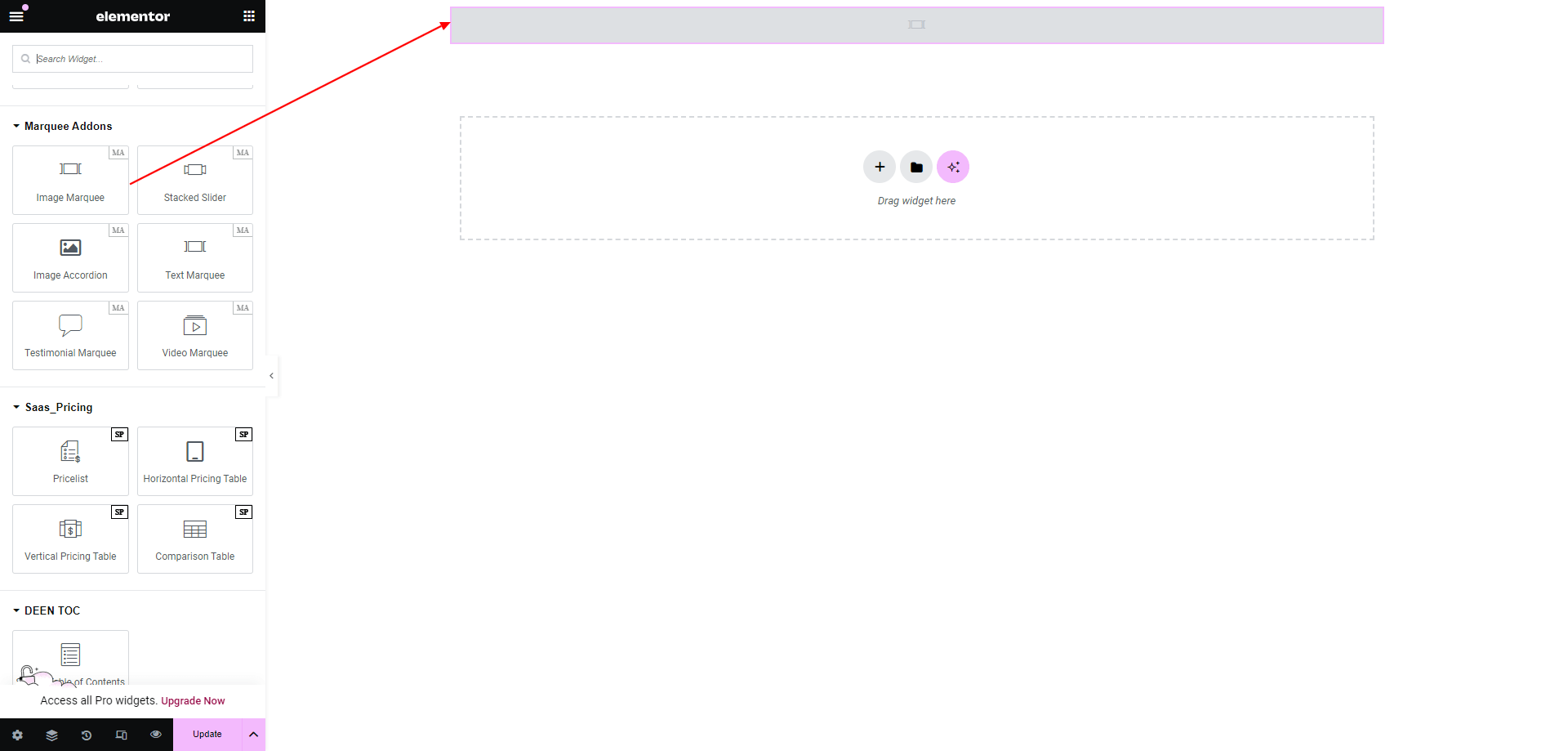
Image Content and Additional Options
We’ll guide you through adding images to the marquee addons, setting marquee directions, enabling lightbox, adding captions, adjusting animation speed, and using lazy load.
Image Marquee Styles
In this video, we’ll show you how to style images, including setting horizontal and vertical alignment, adjusting image spacing, width, and adding borders.
Text Marquee
Drag and drop text marquee
- On the left side of the screen, you'll see the Elementor widget panel.
- Scroll through the panel Marquee Addons and select Text Marquee.
- Click and hold on the widget you want to use, then drag it from the panel.
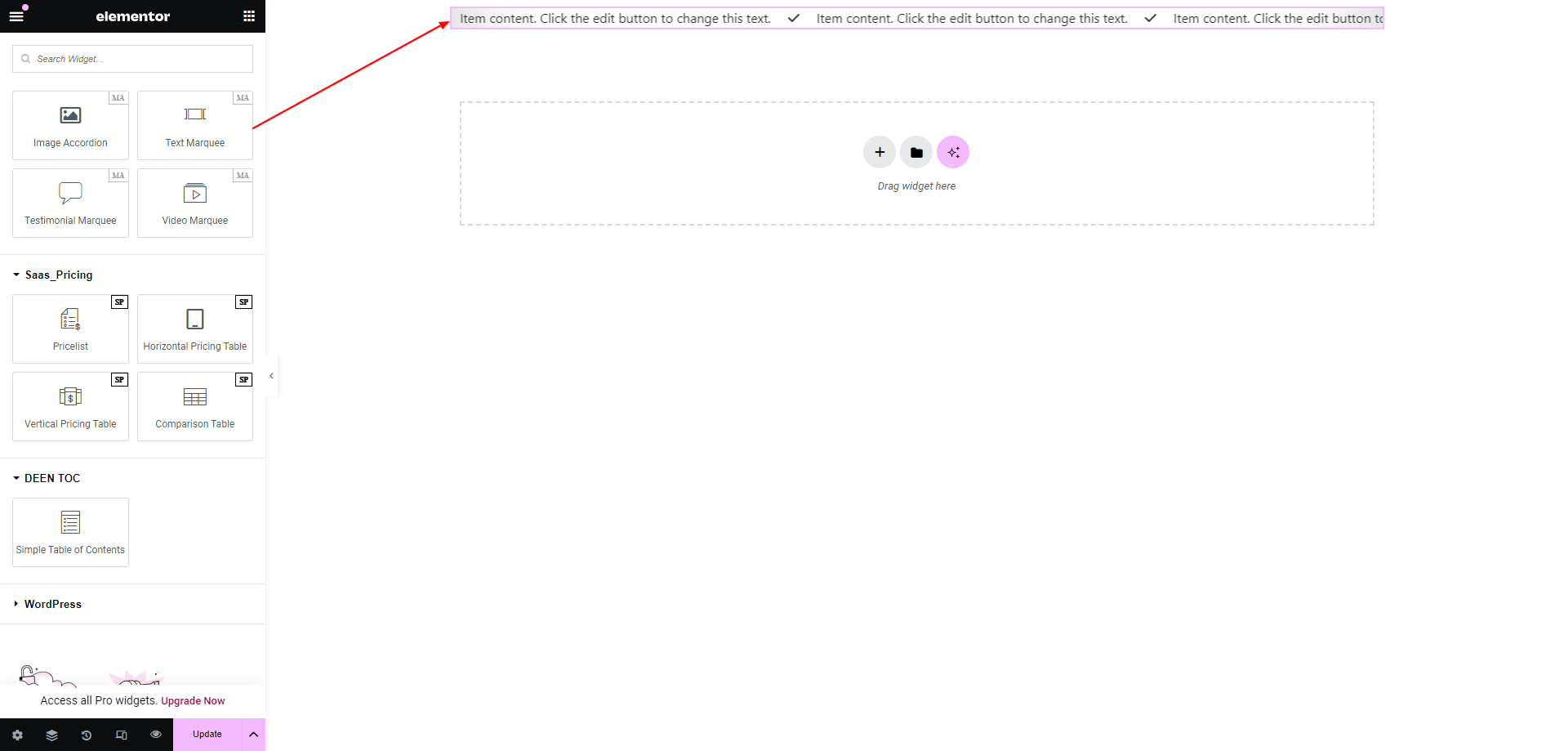
Content and Additional Options
We’ll guide you through adding contents to the marquee addons, setting marquee directions, adjusting animation speed, and controlling slider height.
Text Marquee Styles
We’ll guide you on how to customize icon color, size, spacing, content spacing, text color, and typography.
Video Marquee
Drag and drop video marquee
- On the left side of the screen, you'll see the Elementor widget panel.
- Scroll through the panel Marquee Addons and select Video Marquee.
- Click and hold on the widget you want to use, then drag it from the panel.

Video Contents and Additional Options
We’ll show you how to enable or disable video controls, set the video source, add an image overlay, reverse the marquee direction, and adjust animation controls.
Video Marquee Styles
We’ll show you how to set the aspect ratio, adjust video gap, apply CSS filters, and customize the play icon's color, size, and box shadow.
Testimonial Marquee
Drag and drop testimonial marquee
- On the left side of the screen, you'll see the Elementor widget panel.
- Scroll through the panel Marquee Addons and select Testimonial Marquee.
- Click and hold on the widget you want to use, then drag it from the panel.
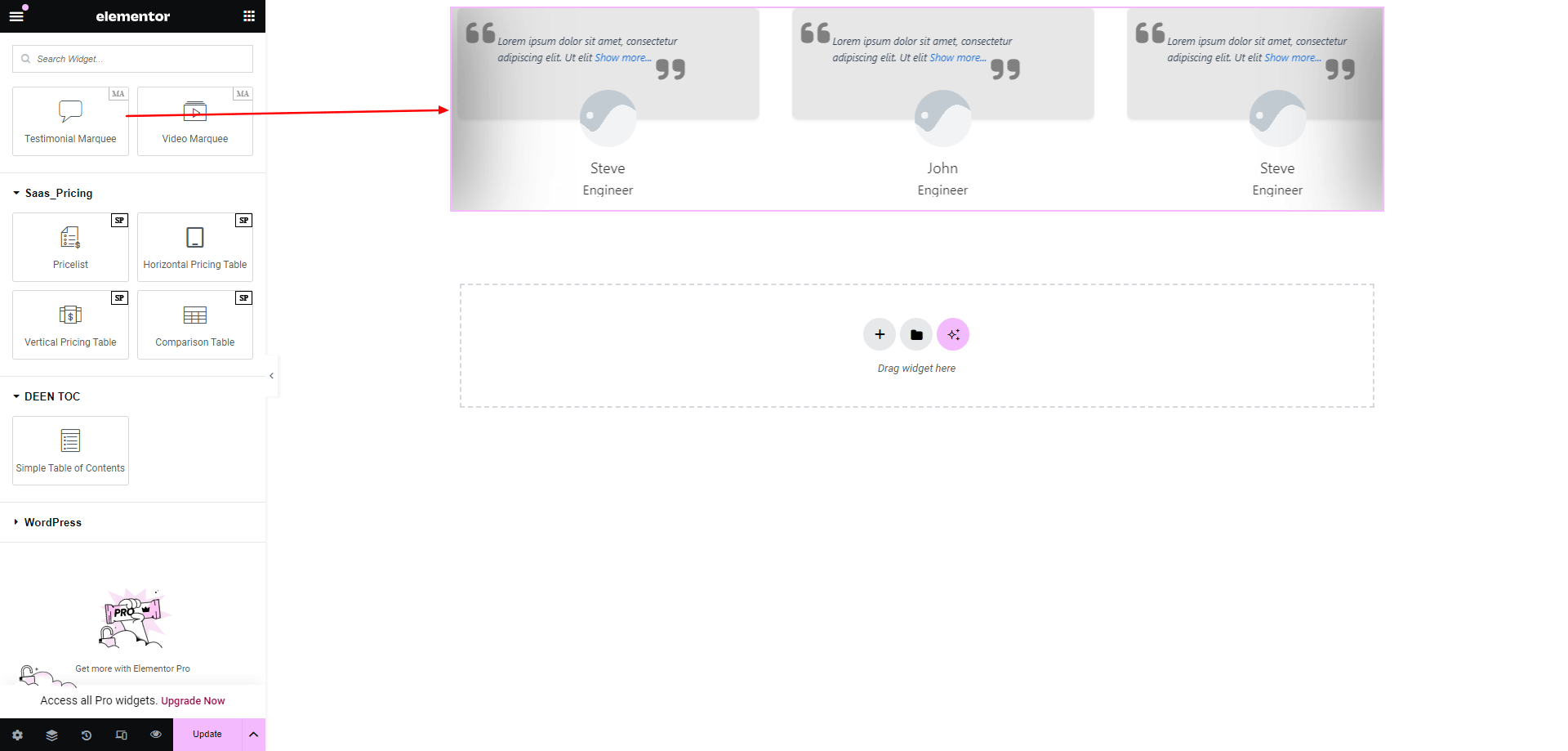
Testimonial Contents and Options
We’ll guide you on how to add testimonial items and customize various elements such as content, images, names, titles, and ratings. Also, set excerpt length, toggle between "show more" and "show less" text, and adjust animation properties.
Testimonial Contents Styles
We’ll guide you on how to add a background, set gaps between boxes, and adjust padding.
Stacked Slider
Drag and drop stacked slider
- On the left side of the screen, you'll see the Elementor widget panel.
- Scroll through the panel Marquee Addons and select Stacked Slider.
- Click and hold on the widget you want to use, then drag it from the panel.

Stacked Slider Contents and Advanced Options
We’ll show you how to add images and adjust the position of a stacked slider. Learn how to customize slider elements such as title, description, button text, and links. We'll also cover how to toggle the dots indicator and control slider animations.
Stacked Slider Styles
You’ll learn how to style various elements of a stacked slider, including the box, title, description, buttons, images, and dots.
Image Accordion
Drag and drop image accordion
- On the left side of the screen, you'll see the Elementor widget panel.
- Scroll through the panel Marquee Addons and select Image Accordion.
- Click and hold on the widget you want to use, then drag it from the panel.

Image Accordion Contents
We’ll guide you on how to add or customize an image accordion, including the image, title, active behavior, and both horizontal and vertical alignment.
Image Accordion Styles
We’ll show you how to adjust image height, set spacing between images, customize overlay colors for normal and hover states, and configure title typography, color, position, and padding.